
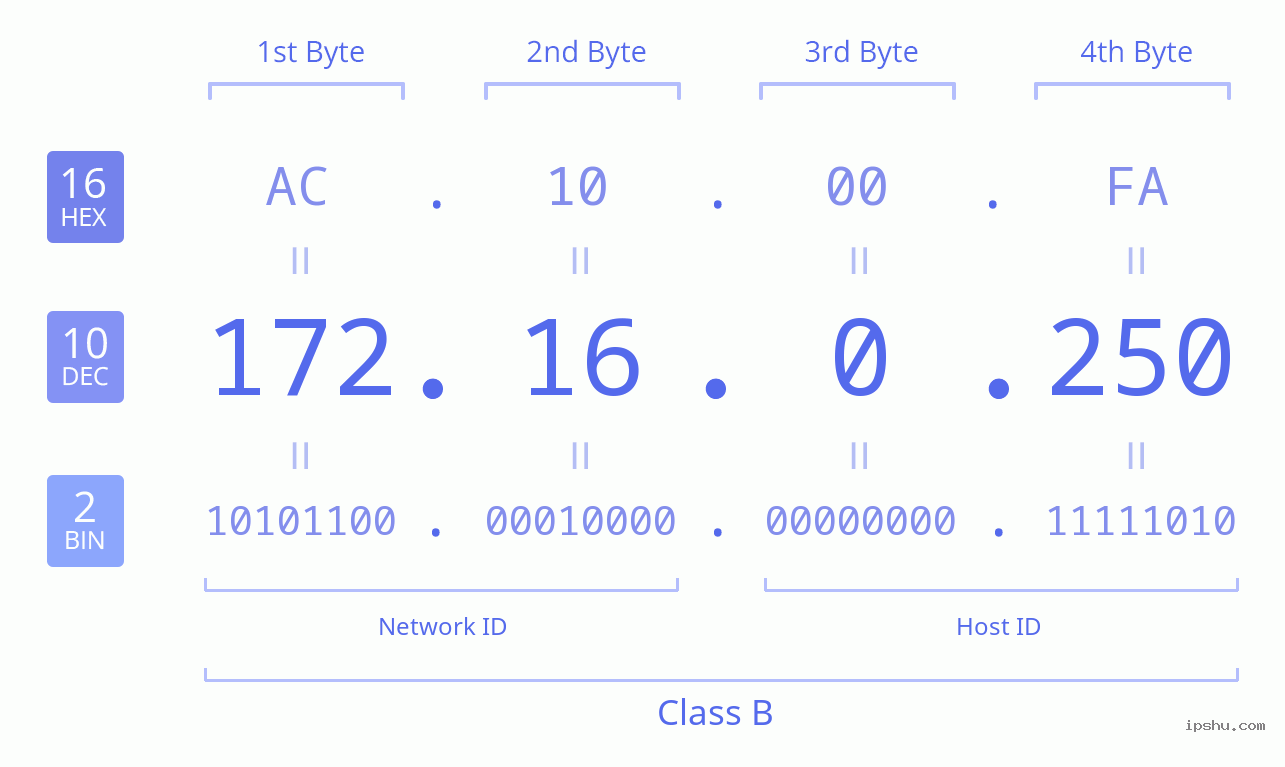
If you have encountered 172.16.0.250.8090 while configuring a router, camera system, server, enterprise application, or another networked device, you may wonder what it actually means. At first glance, it looks like one unusual IP address, but there is an important distinction: 172.16.0.250 is the IP address, while 8090 is the port number.
Together, they identify a particular network destination and service. Understanding that difference can make troubleshooting much easier, especially when a browser, application, or internal dashboard asks you to enter an address like this.
What Does 172.16.0.250.8090 Mean?
The notation 172.16.0.250.8090 is commonly used informally to represent:
IP address: 172.16.0.250
Port: 8090
In standard URL syntax, you would normally write this as:
http://172.16.0.250:8090
The colon between the IP address and port is significant. It tells the software that 172.16.0.250 is the destination host and 8090 is the network port where a particular service may be listening.
So, rather than treating the entire string as an IP address, think of it as a private IP address combined with a specific port.
Is 172.16.0.250 a Private IP Address?
Yes. The address belongs to the 172.16.0.0–172.31.255.255 private IPv4 range.
Private addresses are intended for use inside local networks. They are not globally routable across the public internet in the same way that a public IP address is.
This means a device using 172.16.0.250 is typically reachable only from an appropriate local network, VPN, or other network path that has access to that private subnet.
What Is Port 8090 Used For?
Port 8090 is not inherently tied to one specific application. Many different applications can be configured to listen on it.
Developers and administrators sometimes use ports such as 8080, 8081, 8090, and similar alternatives for:
- Web administration panels
- Internal business applications
- Development servers
- Monitoring interfaces
- Network management software
- Proxy or middleware services
- Custom applications
Therefore, seeing port 8090 does not automatically tell you which software is running there. You need to identify the service configured on the particular device.
How the IP Address and Port Work Together
An IP address tells your computer which device to contact. A port tells it which service on that device to contact.
Imagine an office building. The IP address is similar to the building’s street address, while the port is like a particular office number. Reaching the building is not enough if you need a specific department.
For example:
| Address | Meaning | Typical Purpose |
|---|---|---|
| 172.16.0.250 | Private host address | Identifies a device on a local network |
| 8090 | TCP/UDP port number | Identifies a service configured on the host |
| 172.16.0.250:8090 | Host + service endpoint | Attempts to reach that service |
| Public IP | Internet-routable address | Used for external network communication |
This simple distinction is one of the most useful things to remember when troubleshooting local network services.
How to Access a Service at This Address
If you know that a web-based application is running on port 8090, you can usually try entering:
http://172.16.0.250:8090
into a browser while connected to the appropriate network.
However, a browser page appearing is not guaranteed. Several conditions must be satisfied:
- The device must actually use 172.16.0.250.
- The target service must be running.
- The service must listen on port 8090.
- Your computer must have network connectivity to that subnet.
- A firewall must not block the connection.
- The service must accept connections from your device.
If any one of these conditions fails, the address may not open.
Why You Might Not Be Able to Connect
There are several common explanations when a local address with port 8090 does not respond.
The Device Has a Different IP
Private addresses can change when DHCP is used. A device that previously had 172.16.0.250 might receive another address after a restart or lease renewal.
Checking the router’s DHCP client list or the device’s network settings can help confirm its current address.
Port 8090 Is Not Running
The IP address can be completely valid while nothing is listening on port 8090. In that situation, attempting to connect will fail even though the host itself is online.
Firewall Restrictions
A host firewall, router ACL, endpoint security product, or network firewall may prevent access to the port.
You Are on the Wrong Network
Because 172.16.0.250 is a private address, attempting to reach it from an unrelated external network normally will not work.
For remote access, organizations may use a VPN or another properly configured secure network path.
A Practical Network Scenario
Consider a small company where an internal monitoring application is installed on a server. The administrator assigns the server the address 172.16.0.250, while the monitoring application listens on 8090.
Employees connected to the company’s internal network can enter the appropriate host-and-port address into their browsers and reach the monitoring interface.
Later, an employee working from home tries the same address and receives an error. Nothing is necessarily wrong with the server. The problem may simply be that the employee’s home network cannot directly route to the company’s private 172.16.x.x network.
A VPN that provides authorized access to the corporate network could solve that connectivity problem.
Is This Address Safe?
The address itself is not inherently dangerous. It is simply a private IPv4 address paired with a port.
Security depends on what service is listening there and how that service is configured.
If the endpoint belongs to a device you manage, use strong authentication, keep the underlying software updated, restrict unnecessary network access, and avoid exposing administrative services directly to the public internet.
You should also avoid assuming that an unfamiliar private address belongs to a trusted application merely because it uses a private range.
How to Troubleshoot 172.16.0.250:8090
A systematic approach is usually faster than repeatedly refreshing a browser.
First, confirm that your computer is connected to the correct local network. Next, verify that the target device still has the expected IP address.
After that, determine whether the application is supposed to use port 8090. If you administer the server, inspect its service configuration and listening ports.
You can then check basic network reachability and firewall rules. If the host responds but the port does not, the issue is likely related to the service or filtering rather than basic IP connectivity.
In my experience, separating “Can I reach the host?” from “Can I reach the service?” makes local network troubleshooting considerably less confusing.
IP Address vs. Port: The Key Difference
A common mistake is to think that 172.16.0.250.8090 represents a single IP address. It does not.
IPv4 addresses contain four numerical sections separated by periods, with each section ranging from 0 to 255. The 8090 portion is outside that structure and represents a port.
The technically conventional notation is therefore:
172.16.0.250:8090
That small punctuation difference conveys an important networking concept.
Best Practices for Local Services
If you administer a service using a private address and custom port, consider keeping the following practices in place:
- Reserve or statically assign important server addresses.
- Document which application uses each custom port.
- Restrict access to trusted network segments.
- Keep server and application software updated.
- Use authentication for administrative interfaces.
- Monitor unusual connection attempts.
- Avoid unnecessary public exposure.
- Use VPN access when remote connectivity is required.
Good documentation is particularly valuable in business networks. Months later, knowing exactly why port 8090 exists can save considerable troubleshooting time.
Also Read: My IP: Check Your IP Address and Understand It Better
Conclusion
172.16.0.250.8090 is best understood as a private IPv4 host, 172.16.0.250, combined with port 8090. The address points toward a device on a private network, while the port identifies a particular service running on that device.
If you encounter it in a browser, application, router configuration, or internal system, first determine what device owns the address and what service is expected to use port 8090. From there, connectivity, firewall, and application checks become much more straightforward.
The most useful takeaway is simple: an IP identifies the destination device; a port identifies the service you want on that device.
FAQs
What is 172.16.0.250?
172.16.0.250 is an IPv4 address within the private 172.16.0.0–172.31.255.255 address range. It is generally used within local or private networks.
What does port 8090 mean?
Port 8090 is a network port that applications can use for communication. It does not identify one universal application because different software can be configured to use it.
Can I access 172.16.0.250:8090 from the internet?
Normally, no. The 172.16.0.0/12 range is private and is not directly routable across the public internet. Authorized remote access may require a VPN or another properly configured network connection.
Why does 172.16.0.250:8090 not open in my browser?
The target device may be offline, the IP address may have changed, the service may not be running, port 8090 may be blocked, or your computer may not have access to the relevant private network.
Is 172.16.0.250 a public IP?
No. It is a private IPv4 address and is normally intended for internal network communication.
How do I know what is running on port 8090?
If you administer the target machine, you can inspect its listening services and application configuration. Network administrators can also use authorized network diagnostic tools to identify the service associated with an open port.

One thought on “172.16.0.250.8090: IP Address and Port Explained”